A virus scanner is security software that checks files, links, websites and devices for malware, interprets scan results and supports detection or removal of threats. This guide covers scanner types, scanning methods, result interpretation and malware removal steps for Windows, Mac, Android and iOS users.
- Malware detection: Identifies viruses, ransomware, spyware and trojans
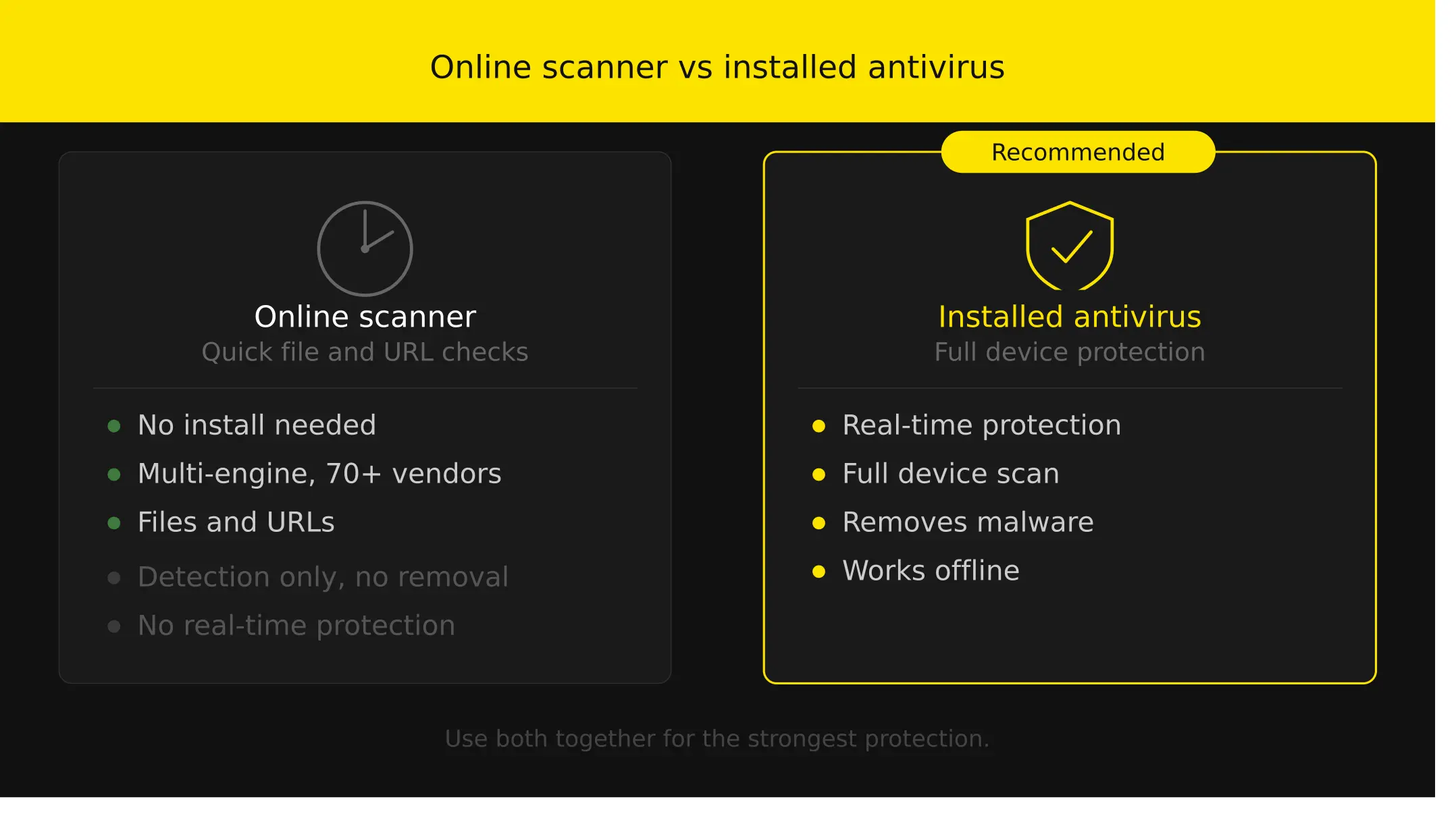
- Online virus scanner: Checks individual files or URLs without installation
- Antivirus software: Provides real-time protection and full-device scanning
- Scan results: Reports files as clean, suspicious or malicious
- Malware removal: Quarantines or deletes detected threats
What is a virus scanner?
A virus scanner is a security tool that analyses files, applications, URLs and devices to detect malicious software such as viruses, ransomware, spyware and trojans. The scanner compares content against a virus definitions database, monitors suspicious behaviour patterns and uses threat intelligence feeds to identify known and emerging threats. Antivirus programs, malware detectors and cloud-based scanners all fall within this category of security software.
What does a virus scanner do?
A virus scanner scans files and system processes, compares code against known malware signatures, detects suspicious behaviour patterns, blocks active threats, quarantines infected files and removes malicious code from the device. The scan engine checks for malware indicators including code fingerprints, file hashes and behavioural anomalies. Signature-based scanners match files against a definitions database. Heuristic scanners analyse code behaviour to identify previously unknown threats. No scanner detects every threat.
Which type of virus scanner should you use?
The main types of virus scanners and their best use cases are listed below.
| Scanner Type | Best For | When to Use It |
|---|---|---|
| Online file scanner | Single file or URL check | Before opening email attachments or unknown downloads |
| Installed antivirus | Full-device protection | Windows, Mac or Android devices requiring real-time monitoring |
| Cloud-based scanner | Multi-engine detection | Second-opinion scans or verifying files flagged by another tool |
| Real-time scanner | Continuous protection | Business devices, computers handling sensitive data |
| Free antivirus | Basic computer protection | Home users with standard browsing and email use |
| Malware removal software | Infected device cleanup | After a confirmed malware infection |
When should you use an online virus scanner?
Use an online virus scanner for a quick one-time check of a suspicious file, link or website before opening, downloading or sharing it. Web-based scanners require no installation and run directly in a browser.
Use an online virus scanner in these situations:
- Suspicious email attachments from unknown senders
- Unknown downloads from file-sharing sites
- Links from unfamiliar senders in emails or messages
- Website malware checks before entering login credentials
- Second-opinion scans when installed antivirus reports an unclear result
When should you use installed antivirus software instead of an online scanner?
Use installed antivirus software instead of an online scanner for real-time protection, full-device scanning, malware removal, offline scanning or ongoing protection for Windows, Android or business devices. Online scanners check individual files or URLs. Installed security software monitors the entire system continuously.
Use installed antivirus software instead of an online scanner in these situations:
| Situation | Why Installed Antivirus Is Better |
|---|---|
| Real-time protection needed | Monitors all file activity, downloads and processes continuously |
| Full-device scan required | Checks system files, registry, apps and background processes |
| Offline scanning | Functions without internet connection using local definitions |
| Malware removal | Quarantines and deletes infected files from the device |
| Windows or Android device | Microsoft Defender and Google Play Protect provide integrated protection |
| Business device | Requires centralised management and compliance reporting |
What can a free virus scanner check?
A free virus scanner checks common malware risks including viruses, ransomware, spyware, suspicious files, unsafe downloads and some active threats on a device. Coverage depends on whether the tool is an online file scanner, downloadable scanner or installed antivirus application.
A free virus scanner usually checks for:
- Suspicious files and downloads
- Viruses, malware, spyware and ransomware
- Windows PC, Mac, Android or iOS device threats
- Active threats already present on the device
- Unsafe links or websites, if the tool includes URL scanning
Free tools typically lack real-time protection, automatic updates, ransomware shields and priority support included in paid security suites.
How does a virus scanner check a file for malware?
A virus scanner checks a file for malware by reading the file's code, comparing it against known malware signatures, and analysing fingerprints or behaviour patterns that match harmful software. Multi-engine scanners display detection labels from multiple antivirus engines. A clean result does not guarantee the file is safe.
A virus scanner usually checks a file through these steps:
- Reads the file structure, headers and executable code
- Compares content against known malware signatures in the definitions database
- Checks file fingerprints and cryptographic hashes
- Analyses suspicious behaviour patterns using heuristic detection
- Reports the file as clean, suspicious or malicious
How does a virus scanner check a website or URL for malware?
A virus scanner checks a website or URL for malware by comparing the address against threat databases, blacklist records, malicious-code signals and security scanner results. URL scanners analyse page content, scripts, redirects and download links.
A website or URL malware scan usually checks these signals:
- Compares the URL against threat intelligence and vendor databases
- Analyses page content for malware, viruses or malicious code
- Checks blacklist or blocklist status across security vendors
- Reviews redirects, phishing signals and unsafe download links
- Reports whether the URL appears clean, suspicious or malicious
How does a virus scanner check a computer, phone or device?
A virus scanner checks a computer, phone or device by scanning system files, applications, downloads and active processes for malware signatures, suspicious behaviour and harmful code. Device scans examine the operating system, installed programs and memory.
A device virus scan usually checks these areas:
- System files and folders including the operating system
- Installed applications and programs
- Recent downloads and email attachments
- Active processes and background activity
- Suspicious behaviour, malicious code or known malware signatures
Full scans take longer than quick scans but examine more file locations.
What types of virus and malware are available?
The main types of virus and malware include ransomware, spyware, adware, trojans, worms, rootkits, botnets, keyloggers and computer viruses. Each type operates differently and targets different system components.
Common types of virus and malware are listed below:
- Ransomware: Encrypts files and demands payment for decryption
- Spyware: Monitors user activity and collects data without consent
- Adware: Displays unwanted advertisements and redirects browsers
- Trojans: Disguises as legitimate software to gain system access
- Worms: Self-replicates across networks without user interaction
- Rootkits: Hides deep in the operating system to avoid detection
- Botnets: Connects infected devices to a remote command network
- Keyloggers: Records keystrokes to capture passwords and credentials
- Computer viruses: Attaches to programs and spreads when executed
What do virus scan results mean?
Virus scan results show whether the scanner found no threat, detected malware, quarantined a file, removed malicious code, or failed to complete the scan. Result terminology varies between security vendors.
Common virus scan result meanings are listed below:
| Result | Meaning | What to Do Next |
|---|---|---|
| Clean / No threats found | No malware detected in scanned files | No action required |
| Threat detected | Malware identified in one or more files | Review and quarantine or delete |
| Quarantined | File isolated and blocked from running | Delete or restore if false positive |
| Cleaned / Removed | Malicious code deleted from the device | Run a second scan to confirm |
| Suspicious / PUP | Potentially unwanted program flagged | Review and decide to keep or remove |
| Scan failed / Error | Scan did not complete successfully | Check disk space, permissions or retry |
What should you do after a virus scanner finds malware?
After a virus scanner finds malware, isolate the affected device, quarantine or remove the threat, run another scan, then secure accounts and restore clean files if needed.
Follow these steps after a virus scanner finds malware:
- Disconnect or isolate the infected device if the threat spreads via network
- Quarantine or delete the detected malware using the scanner's removal tool
- Run a full scan or second-opinion scan with a different security tool
- Update passwords from a clean device if credentials are compromised
- Restore affected files from a clean backup if required
- Update software and enable real-time protection to prevent reinfection
- Contact a security professional if malware returns or business data is involved
What are the best virus scanner tools?
The best virus scanner tool depends on whether the user needs a free file scan, full-device antivirus protection, malware removal, website scanning or Android and Windows protection.
The main virus scanner tools and their best use cases are compared below:
| Tool | Best For | Free Option | Main Limitation |
|---|---|---|---|
| VirusTotal | Multi-engine file and URL scanning | Yes | Detection only, no removal |
| Microsoft Defender | Windows real-time protection | Yes (built-in) | Windows only |
| Malwarebytes | Malware removal and cleanup | Yes (scan only) | Real-time protection requires paid version |
| Bitdefender | Cross-platform antivirus protection | Yes (limited) | Full features require subscription |
| Kaspersky | Comprehensive security suite | Yes (limited) | Geographic restrictions apply |
| Avast | Free antivirus with browser protection | Yes | Collects usage data in free version |
| Norton | Full-device protection with VPN | No | Subscription required |
| Google Play Protect | Android app scanning | Yes (built-in) | Android only |
Can Windows Microsoft Defender run a full virus scan?
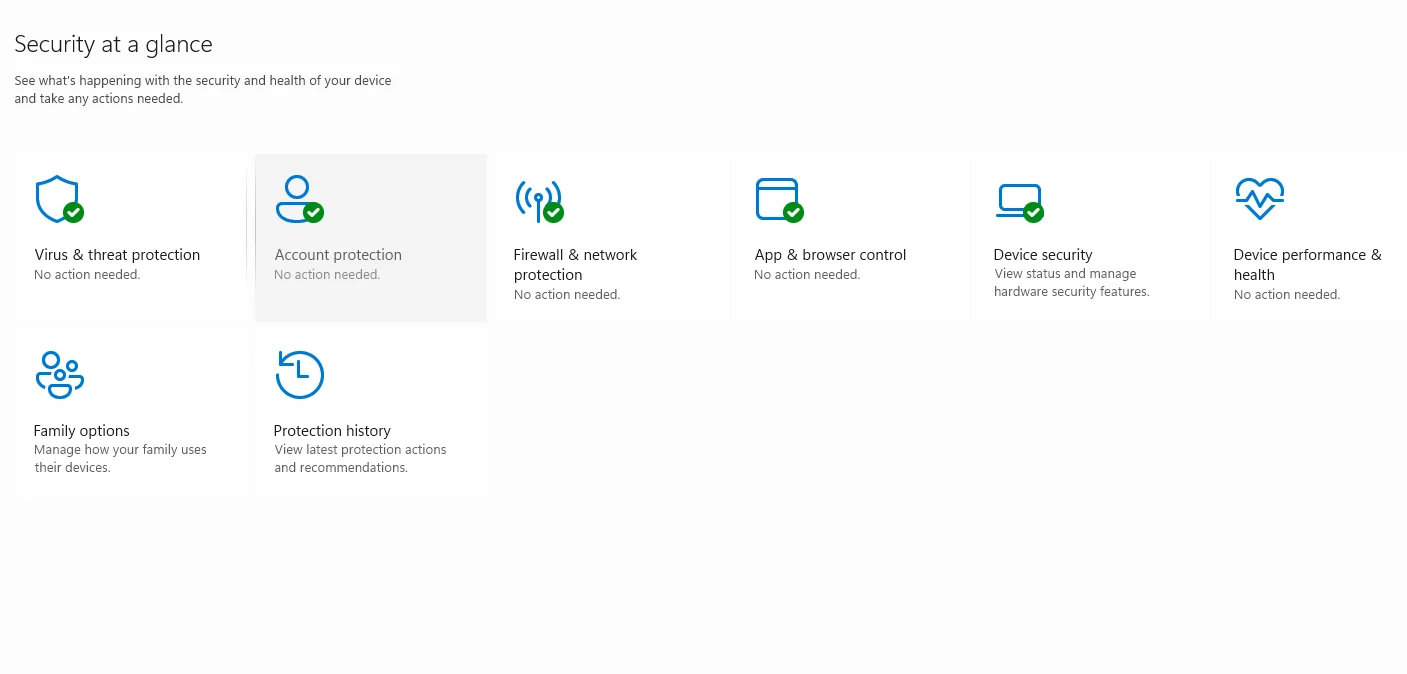
Yes. Microsoft Defender runs a full virus scan on Windows through Windows Security > Virus & threat protection > Scan options > Full scan. The full scan examines all files, folders, running programs and registry entries. Quick scans check common malware locations only. Microsoft Defender updates virus definitions automatically through Windows Update.
Does Mac have a built-in virus scanner?
Yes. Mac includes built-in malware protection through XProtect, Gatekeeper and Apple's Malware Removal Tool. XProtect scans applications and blocks known malware. Gatekeeper verifies app signatures and developer certificates. The Malware Removal Tool deletes detected threats automatically during system updates. These tools protect against known macOS malware but do not replace third-party antivirus software for advanced threats.
Should you scan an Android phone for malware?
Yes. Scan an Android phone for malware if the device runs slowly, displays unexpected pop-ups, overheats, drains battery quickly or has suspicious apps installed. Google Play Protect scans apps automatically. Access manual scanning through Google Play Store > Profile > Play Protect > Scan. Third-party security apps provide additional protection for devices that install apps from outside the Play Store.
What is a multi-engine virus scanner?
A multi-engine virus scanner is a security tool that checks a file, URL or system using multiple antivirus engines simultaneously. VirusTotal aggregates results from over 70 antivirus vendors. Multi-engine scanning increases detection rates by combining signature databases and heuristic methods from different security vendors. Results display which engines flagged the file and their detection labels.
What is a false positive in a virus scan?
A false positive in a virus scan occurs when antivirus software incorrectly flags a safe file, application or process as malware. False positives happen when legitimate software shares code patterns with known malware or when heuristic detection is too aggressive. Verify suspicious results using a multi-engine scanner. Report confirmed false positives to the antivirus vendor.
Should you scan a file before opening it?
Yes. Scan a file before opening it, especially if the file originates from an unknown sender, download site, email attachment or shared link. Right-click the file and select "Scan with Microsoft Defender" on Windows. Upload to VirusTotal for multi-engine analysis. Scanning prevents malware execution before it accesses system files or network resources. Pair regular file scanning with a structured Website Maintenance Tasks schedule to reduce long-term site exposure.
Is it safe to upload private files to an online virus scanner?
No. Do not upload private files to a public online virus scanner unless you understand how the service stores, shares or analyses uploaded content. VirusTotal shares uploaded files with security researchers and antivirus vendors. Confidential documents, credentials, source code and personal data remain accessible to third parties. Use local antivirus software for private file scanning and combine with proactive WordPress Security controls for site-level protection.
Can a virus scanner remove malware or only detect it?
Yes. Many virus scanners detect, quarantine and remove malware from infected devices. Installed antivirus software includes removal tools that delete malicious files and repair system damage. Online scanners typically report threats without cleaning the device. Malware removal tools such as Malwarebytes specialise in eliminating infections that standard antivirus misses.
A virus scanner provides malware detection, scan results interpretation and threat removal for files, URLs and devices. Selecting the appropriate tool, understanding detection methods and following post-scan procedures protects Windows, Mac, Android and iOS systems from viruses, ransomware, spyware and other malicious software. For complete protection, pair regular scanning with professional website security and proactive website maintenance to keep your site safe from evolving threats.