Website backup provides complete protection for Australian businesses through systematic data copying, reliable recovery procedures and secure storage solutions that meet local compliance requirements. This guide covers backup types, automated scheduling methods, storage locations with Australian data sovereignty compliance and restoration processes. Businesses storing customer information under the Privacy Act 1988 require documented backup procedures with verifiable recovery points. The following sections explain what website backups include, how to implement automated protection and where to store copies for disaster recovery.
What is Website Backup?
A website backup is a saved copy of all website files, databases, configurations and media stored in a secure location separate from the production server to enable recovery after data loss, security breaches or system failures. The backup captures a complete snapshot of the site at a specific point in time. When a problem occurs, the site restores to that saved state. Backups protect against hardware failures, hacking incidents, accidental deletions and corrupted updates.
What does website backup include?
A comprehensive website backup includes the following components:
- Website code files: All PHP, HTML, CSS and JavaScript files that control site appearance and functionality.
- Databases: MySQL or MariaDB databases containing posts, pages, user accounts, orders and dynamic content.
- Images and media: Uploaded photos, videos, PDFs and documents stored in the media library or uploads folder.
- Plugins, themes and add-ons: All installed extensions, theme files and customisations that extend core functionality.
- Configuration files: wp-config.php, .htaccess, php.ini and server configuration settings.
- Email data: Webmail accounts and email stored on the hosting server, where applicable.
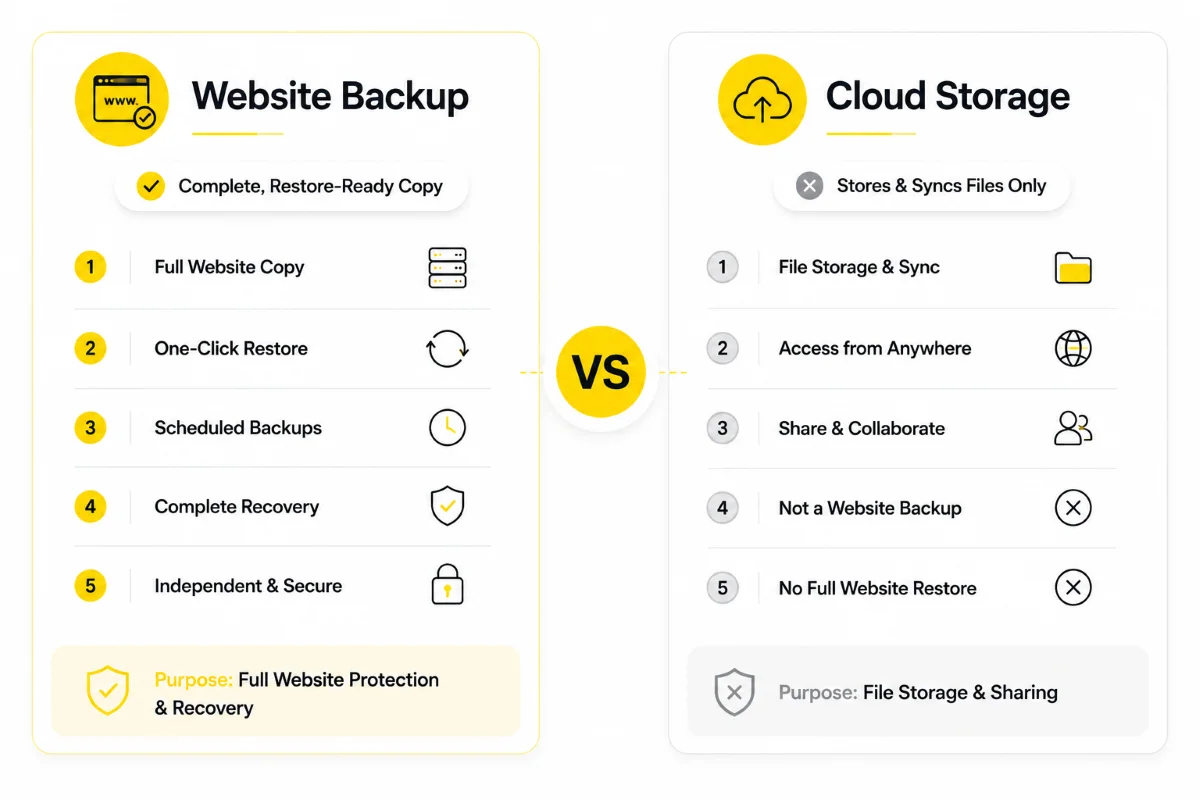
How is website backup different from cloud storage?
Website backup and cloud storage serve fundamentally different purposes: backup creates point-in-time recovery snapshots while cloud storage provides file synchronisation and sharing. Automatic backups run in the background on a schedule, capturing the complete site state for disaster recovery planning. Cloud storage services like Dropbox and Google Drive sync files across devices for accessibility and collaboration. Synced files reflect current state only. Deleted or corrupted files sync across all connected devices, removing the ability to restore previous versions. Backup systems retain multiple historical snapshots, enabling restoration to any saved point.
Why is Website Backup Important?
Website backups are essential for protecting businesses from unexpected data loss, cyberattacks and technical failures that take sites offline and disrupt operations. Here are the key reasons why regular website backups are critical for Australian businesses:
- Safeguard against permanent data loss from hardware failure, software corruption or human error
- Protect against cyberattacks including malware infections, ransomware and defacement
- Restore the entire site after failed updates or incompatible plugin installations
- Recover lost or corrupted database records, customer orders and content
- Maintain business continuity when the hosting environment fails
- Meet compliance requirements under the Privacy Act 1988 for customer data protection
What happens if you don't backup your website?
Without regular website backups, businesses face permanent data loss, extended downtime and potential closure when problems occur. Here are the critical risks businesses face without website backups:
- Permanent information loss: Files get corrupted, hard drives fail and servers malfunction. Without backups, years of content, customer data and business records disappear permanently.
- Extended downtime: Rebuilding a website from scratch takes days or weeks. Each hour of downtime costs Australian businesses an average of $2,000 in lost revenue according to industry reports.
- Reputation damage: Customers lose trust when a business website displays errors or disappears. Recovery without backups means starting over with reduced credibility.
- Compliance violations: Australian businesses handling customer data under the Privacy Act 1988 require documented data protection measures. Lacking backups creates legal liability.
- Complete business failure: E-commerce sites losing order history, customer accounts and product data risk going out of business when recovery is impossible.
What are the Types of Website Backups?
Several types of website backups exist, each designed for different recovery scenarios, storage requirements and performance needs. The main types of website backups include:
- Full Backup: A complete copy of the entire website including all files, databases and configurations. Full backups take longer to create and require more storage space. They restore independently without requiring other backup files. Run full backups weekly or before major changes.
- Incremental Backup: Copies only files changed since the last backup of any type. Incremental backups complete faster and use less storage. Restoration requires the last full backup plus all subsequent incremental backups in sequence. Suitable for daily backup schedules.
- Differential Backup: Copies all files changed since the last full backup. Differential backups grow larger over time but restore faster than incremental backups. Restoration requires only the last full backup plus the most recent differential backup.
- Automated Backup: Runs on a configured schedule without manual intervention. Automated backups eliminate human error and ensure consistent protection. Most Australian hosting providers and WordPress plugins support automated scheduling.
- Manual Backup: Created on-demand by downloading files via cPanel, FTP or database export. Manual backups provide control over timing but rely on human memory. Suitable as a supplement to automated backups before major updates.
What is the difference between full and incremental?
Full backups copy all website data every time while incremental backups copy only changes since the last backup, creating significant differences in speed, storage and restoration complexity.
| Attribute | Full Backup | Incremental Backup |
|---|---|---|
| Data Copied | Complete site every time | Changed files only |
| Backup Speed | Slower (copies everything) | Faster (copies changes only) |
| Storage Usage | Higher (full copy each time) | Lower (stores differences) |
| Restore Speed | Faster (single file restore) | Slower (requires chain) |
| Best For | Weekly scheduled backups | Daily scheduled backups |
Should I use manual or automated backups?
Automated backups are the recommended choice for most Australian businesses because they eliminate human error and ensure consistent protection without requiring daily manual intervention.
Australian businesses handling customer data under the Privacy Act 1988 require documented, verifiable backup procedures. Automated systems create timestamped records proving compliance. E-commerce sites processing transactions need backup schedules that capture every order and customer interaction.
Here is how manual and automated backups compare:
Automated backups run on schedule without intervention, capture changes consistently and maintain protection during holidays and staff absences. The backup software handles scheduling, retention and storage automatically. Setup takes minutes through cPanel, WordPress plugins or hosting provider dashboards.
Manual backups require someone to remember, log in and complete the process each time. Busy periods, staff turnover and simple forgetfulness create gaps in protection. Manual downloads via FTP or cPanel take time and interrupt other work.
The recommended approach combines automated daily backups with manual backups before major updates, plugin installations or theme changes.
How to Backup a Website?
Backing up a website involves copying all site files and databases to a secure storage location using methods available through hosting control panels, FTP clients or CMS plugins. Here are the main methods to backup a website:
-
Using cPanel Backup Feature
Log in to cPanel through the hosting provider dashboard. Navigate to the Backup section under Files. Select Full Backup to download a complete archive. Choose the backup destination: home directory, remote FTP server or email notification. Click Generate Backup and wait for completion. Download the backup file to local storage. -
Using FTP Client (FileZilla)
Install FileZilla or another FTP client. Enter FTP credentials from the hosting provider. Connect to the server and navigate to public_html. Select all files and folders. Right-click and choose Download. Export the database separately using phpMyAdmin. -
Using WordPress Backup Plugins
Install UpdraftPlus, BackWPup or Duplicator from the WordPress plugin directory. Configure backup settings including schedule and storage destination. Run the first backup manually to verify configuration. Set automated schedule for daily or weekly backups. Configure remote storage to Google Drive, Dropbox or Amazon S3. -
Using Hosting Provider Tools
Access the hosting provider dashboard. Navigate to the backup or site management section. Enable automated backups if available. Configure backup frequency and retention period. Verify backup completion through email notifications or dashboard logs.
How to schedule automatic backups?
Scheduling automatic backups ensures consistent website protection without manual intervention through configuration in hosting control panels, WordPress plugins or dedicated backup software. Follow these steps to schedule automatic website backups:
- Choose the backup method: cPanel scheduled backups, WordPress plugin like UpdraftPlus or hosting provider automated tools
- Access the backup settings in the chosen tool and locate the scheduling configuration
- Set backup frequency based on site activity: daily for e-commerce and membership sites, weekly for static business websites
- Choose backup time during off-peak hours, typically 2:00 AM to 4:00 AM AEST when site traffic is lowest
- Configure retention settings specifying how many backups to keep: 7 days minimum, 30 days recommended, 90 days for compliance requirements
- Set up remote storage destination: Google Drive, Dropbox, Amazon S3 or separate hosting account
- Test the automated schedule by waiting for the first scheduled backup and verifying completion
What are the Best Backup Tools?
The best website backup tools range from free WordPress plugins to managed backup services, each offering different automation levels, storage options and restoration capabilities for Australian businesses. Here are the top website backup tools:
- UpdraftPlus: Free WordPress plugin with scheduled backups to cloud storage including Google Drive, Dropbox and Amazon S3. Premium version adds incremental backups and migrator tool. Best for WordPress sites needing free automated backups. Free version available, premium from $70 USD annually.
- BackWPup: Free WordPress plugin creating complete backups including database and files. Supports scheduled backups to Dropbox, S3, FTP and email. Best for WordPress sites requiring database-focused backups. Free version available.
- Duplicator: WordPress plugin for site migration and backup. Creates portable archive packages for moving sites between hosts. Best for site migrations and manual backup archives. Free version available, Pro from $49.50 USD annually.
- cPanel Backup: Built-in hosting control panel feature for full and partial backups. Included with cPanel hosting, popular with Australian providers like VentraIP and Webcentral. Best for non-WordPress sites on shared hosting. Included with hosting.
- BlogVault: Managed WordPress backup service with daily automatic backups, staging environment and malware scanning. Australian data centre storage available. Best for business sites requiring managed backup service. From $89 USD annually.
- JetBackup: Server-level backup solution integrated with cPanel and DirectAdmin. Provides automated scheduling, incremental backups and self-service restoration. Best for resellers and agencies managing multiple sites. Included with compatible hosting.
Where Should I Store Website Backups?
Website backups require storage in multiple locations following the 3-2-1 backup rule: keep three copies on two different media types with one copy stored offsite for maximum protection. The best storage locations for website backups include:
- Cloud Storage Services: Google Drive, Dropbox, Amazon S3 and Microsoft OneDrive provide offsite storage with geographic redundancy. AWS Sydney and Azure Melbourne regions keep data within Australia for sovereignty compliance. Access backups from anywhere with internet connectivity.
- External Hard Drives: Local storage on USB drives or network-attached storage (NAS) devices. Provides fast access for restoration but requires physical security and offsite rotation. Suitable as a secondary backup location.
- Offsite Remote Servers: Separate hosting account or dedicated backup server in a different data centre. Protects against data centre failures affecting the primary host. Requires additional hosting costs.
- Australian Data Centre Storage: Storage services with servers located in Sydney, Melbourne or other Australian cities. Meets Privacy Act 1988 data sovereignty requirements for customer information. AWS Sydney, Azure Australia East and local providers offer compliant storage.
- Hosting Provider Storage: Backup storage included with or available from the hosting provider. Convenient but creates single point of failure if the provider experiences issues. Use as primary backup with offsite secondary copy.
What are Website Backup Best Practices?
Following website backup best practices ensures business data remains protected and recoverable with the 3-2-1 backup rule forming the foundation of any reliable backup strategy. Follow these essential website backup best practices:
- Follow the 3-2-1 backup rule: Maintain three copies of website data on two different storage types with one copy stored offsite. This approach protects against hardware failure, software corruption, natural disasters and localised incidents affecting single storage locations.
- Automate backup schedules: Configure automated daily or weekly backups through cPanel, WordPress plugins or hosting provider tools. Automated systems eliminate human error and ensure consistent protection during holidays, weekends and staff absences.
- Set appropriate backup frequency: E-commerce sites, membership platforms and sites with daily content updates require daily backups. Static business websites with infrequent changes run weekly backups. Increase frequency during active development periods.
- Store backups in multiple locations: Keep backups on local storage, cloud services and offsite servers. Avoid storing backups only on the same server as the website. A server failure or hack affecting the primary site also destroys co-located backups.
- Encrypt backup data: Enable encryption for backup files containing customer data, login credentials or sensitive business information. Privacy Act 1988 compliance requires appropriate security measures for personal information. Most backup plugins and cloud services offer encryption options.
- Test backups regularly: Restore backups to a staging environment monthly or quarterly to verify file integrity and database functionality. Untested backups fail at critical moments. Document test dates and results for compliance records.
- Maintain backup retention policy: Keep daily backups for 7 days, weekly backups for 4 weeks and monthly backups for 12 months. Longer retention periods enable recovery from problems discovered weeks or months after occurrence. Adjust based on compliance requirements and storage capacity.
- Document backup procedures: Record backup schedules, storage locations, access credentials, restoration steps and responsible staff. Documentation enables recovery when the person who configured backups is unavailable. Store documentation separately from backup systems.
How to Restore a Website from Backup?
Restoring a website from backup involves accessing backup files, uploading them to the server and importing the database to return the site to its previous state. Restoration time varies from 10 minutes for small sites to several hours for large e-commerce platforms. Follow these steps to restore a website from backup:
- Access backup files from the storage location: cloud service, local drive, hosting provider dashboard or backup plugin interface
- Log in to cPanel or the hosting control panel using administrator credentials
- Navigate to the Backup or Backup Wizard section under Files
- Upload the backup archive file to the server if restoring from external storage
- Extract files to the public_html directory, overwriting existing files
- Import the database backup through phpMyAdmin: select the database, click Import and choose the SQL backup file
- Verify file permissions are correct: 755 for directories, 644 for files
- Test website functionality including page loading, forms, checkout process and admin login
- Clear any caching plugins and server-side caches to display restored content
WordPress plugin restoration: Open UpdraftPlus settings, click Existing Backups tab, select the backup date and click Restore. Choose components to restore: plugins, themes, uploads, database. The plugin handles file extraction and database import automatically.
Common restoration issues: Database connection errors require updating wp-config.php with correct credentials. White screen errors indicate PHP memory limits requiring increase in php.ini. Missing images suggest incomplete file uploads requiring re-transfer of the uploads directory.
How Much Does Website Backup Cost?
Website backup costs in Australia range from free (included with hosting) to $50 AUD monthly for dedicated backup services, depending on storage size, backup frequency and features required. Website backup pricing typically falls into these categories:
- Free options: Hosting provider included backups, basic WordPress plugins like UpdraftPlus free version, manual cPanel downloads. Limited storage, basic scheduling, no managed support.
- Budget solutions ($5-$20 AUD monthly): Premium WordPress plugins, basic managed backup services. Include automated scheduling, cloud storage, email notifications. Suitable for small business websites.
- Premium backup services ($20-$50 AUD monthly or $150-$600 AUD annually): Managed backup platforms like BlogVault, VaultPress or hosting provider premium backup plans. Include daily automated backups, malware scanning, staging environments, priority restoration support.
- Enterprise solutions (custom pricing): Dedicated backup infrastructure, compliance documentation, SLA guarantees, 24/7 support. For large e-commerce platforms, membership sites and businesses with strict compliance requirements.
Cost factors: storage capacity requirements, backup frequency (daily costs more than weekly), retention period length, number of sites covered, support level and restoration assistance.
What affects backup pricing?
Backup pricing depends on storage capacity, backup frequency, retention periods and service features with cloud providers charging per GB while plugin subscriptions use flat annual fees.
| Provider | Storage/Plan | Monthly Cost (AUD) |
|---|---|---|
| AWS S3 Sydney | Per GB | $0.03 |
| Google Cloud Sydney | Per GB | $0.02-$0.03 |
| pCloud | 2TB | $12 |
| UpdraftPlus Premium | Unlimited | $6 (annual plan) |
| BlogVault | Per site | $12-$25 |
Are there free website backup options?
YES, several free website backup options exist including WordPress plugins like UpdraftPlus and BackWPup, cPanel backups included with hosting and manual FTP downloads.
Free backup options include:
- UpdraftPlus free version with scheduled backups to Google Drive, Dropbox or local storage
- BackWPup free version for WordPress database and file backups
- Duplicator free version for site migration and backup archives
- cPanel backup feature included with most Australian shared hosting
- Manual FTP download of files combined with phpMyAdmin database export
Free tools provide basic protection. Paid options add incremental backups, priority support, malware scanning and managed restoration assistance.
Do Australian hosting providers include backups for free?
SOME DO: many Australian hosting providers like VentraIP, Webcentral and Zuver include daily or weekly backups free with their hosting plans, while others charge extra or offer backups as paid add-ons.
VentraIP includes automatic daily backups with 14-day retention on shared hosting plans. Webcentral provides daily backups on managed WordPress hosting. Some providers include free backups but charge for restoration assistance. Check the specific plan inclusions before signing up. Free hosting backups serve as primary protection but require offsite copies following the 3-2-1 rule.
Should small businesses pay for backup solutions?
YES, small businesses benefit from paid backup solutions because the cost of data loss and downtime (reportedly upwards of $2,000 AUD per hour) far exceeds backup service costs, making it essential business protection rather than optional expense.
Paid solutions at $10-$30 AUD monthly provide automated scheduling, managed storage, priority support and faster restoration compared to free alternatives. Businesses storing customer data require documented backup procedures for Privacy Act 1988 compliance. Paid services generate compliance-ready logs and verification records.
Are there free website backup options?
YES, several free website backup options exist including WordPress plugins like UpdraftPlus and BackWPup, cPanel backups included with hosting and manual FTP downloads.
Free backup options include:
- UpdraftPlus free version with scheduled backups to Google Drive, Dropbox or local storage
- BackWPup free version for WordPress database and file backups
- Duplicator free version for site migration and backup archives
- cPanel backup feature included with most Australian shared hosting
- Manual FTP download of files combined with phpMyAdmin database export
Free tools provide basic protection. Paid options add incremental backups, priority support, malware scanning and managed restoration assistance.
Do Australian hosting providers include backups for free?
SOME DO: many Australian hosting providers like VentraIP, Webcentral and Zuver include daily or weekly backups free with their hosting plans, while others charge extra or offer backups as paid add-ons.
VentraIP includes automatic daily backups with 14-day retention on shared hosting plans. Webcentral provides daily backups on managed WordPress hosting. Some providers include free backups but charge for restoration assistance. Check the specific plan inclusions before signing up. Free hosting backups serve as primary protection but require offsite copies following the 3-2-1 rule.
Should small businesses pay for backup solutions?
YES, small businesses benefit from paid backup solutions because the cost of data loss and website downtime (reportedly upwards of $2,000 AUD per hour) far exceeds backup service costs, making it essential business protection rather than optional expense.
Paid solutions at $10-$30 AUD monthly provide automated scheduling, managed storage, priority support and faster restoration compared to free alternatives. Businesses storing customer data require documented backup procedures for Privacy Act 1988 compliance. Paid services generate compliance-ready logs and verification records.
Does restoration cost extra money?
IT DEPENDS: most Australian backup providers include free self-service restoration with their plans, but some charge per restore or limit the number of free restorations monthly.
Free hosting backups typically include self-service restoration through cPanel at no extra cost. Managed backup services include unlimited restorations in premium tiers. Some providers charge $50-$150 AUD for assisted restoration where technicians perform the recovery. Check plan terms for restoration fees before purchase.
Do larger websites cost more to backup?
YES, larger websites cost more to backup because most backup services charge based on storage capacity used, typically $0.05-$0.15 AUD per GB monthly, meaning sites with more files, databases and media pay proportionally higher backup costs.
A 1GB website costs approximately $0.05-$0.15 AUD monthly for cloud storage. A 50GB e-commerce site with product images costs $2.50-$7.50 AUD monthly for the same storage tier. Plugin-based solutions with flat annual pricing become more economical for larger sites compared to per-GB cloud storage.
Does WordPress backup require paid plugins?
NO, WordPress backup does not require paid plugins. Free options like UpdraftPlus, BackWPup and Duplicator provide complete backup functionality including scheduled backups, cloud storage integration and restoration tools.
Manual backup via cPanel, FTP or phpMyAdmin requires no plugins. Free plugins cover most small business needs. Paid plugins add incremental backups, priority support, multisite management and advanced migration features for larger or more complex sites.
Website backup provides complete protection for Australian businesses through systematic data copying to secure storage locations, documented recovery procedures and compliance with local data sovereignty requirements. Following the 3-2-1 backup rule, automating backup schedules and testing restoration processes ensures business data remains protected and recoverable. A website security plan combined with regular backups reduces exposure to attacks, while understanding common website error codes helps diagnose and resolve issues faster when problems occur. Web Maintenance Australia provides managed backup, security and recovery services for Australian businesses.